🇿🇦 Limited Offer: Save up to 40% on annual IPTV subscriptions
Claim Now →
HOW TO CONFIGURE IPTV ON YOUR DEVICE?
Step-by-step instructions to install your IPTV South Africa subscription on any device. Whether you have a Smart TV, Firestick, MAG box, Android, iPhone, Windows PC, Formuler or Roku — we've got you covered with screenshots for every step.
Our IPTV South Africa service is compatible with any Smart TV application. Below are the two recommended apps for the best experience.
Best for Samsung, LG and Android Smart TVs
Step 1 Open the Google Play Store on your Smart TV.
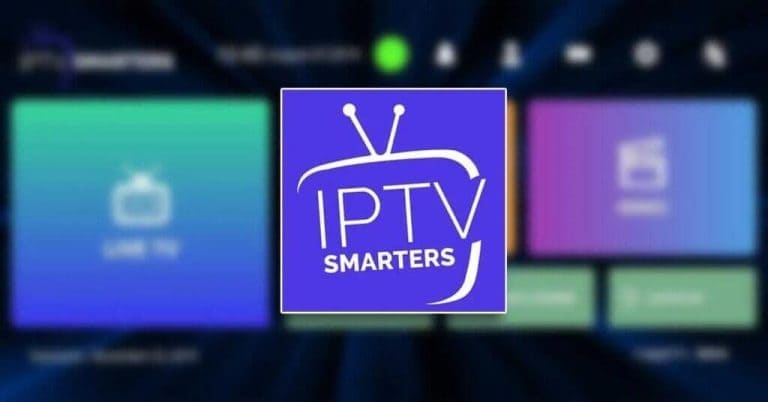
Step 2 Search for "IPTV Smarters PRO" or Smarters Player Lite and install it:
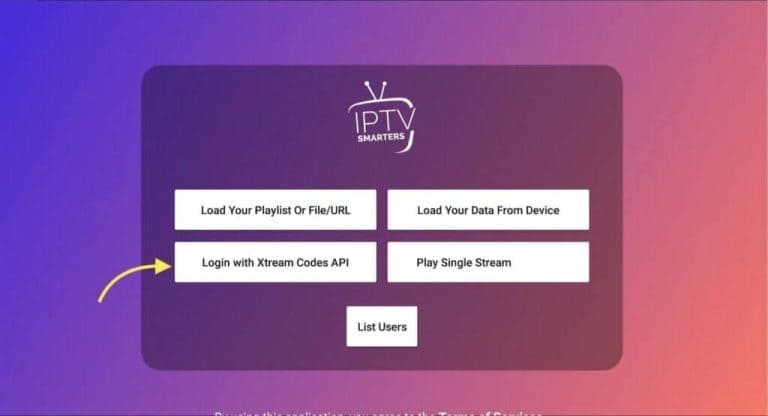
Step 3 Open IPTV Smarters PRO and click on "Login with Xtream Codes API".
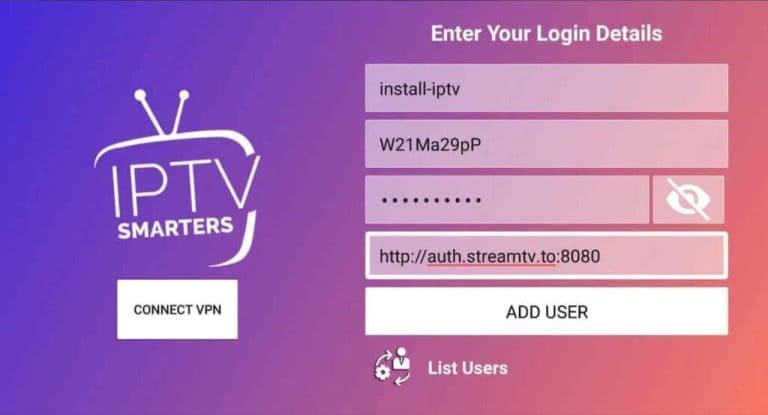
Step 4 Enter your Xtream login details.
In the first field, choose any name for your list, then enter the username, password and URL we provided you, and click ADD USER.
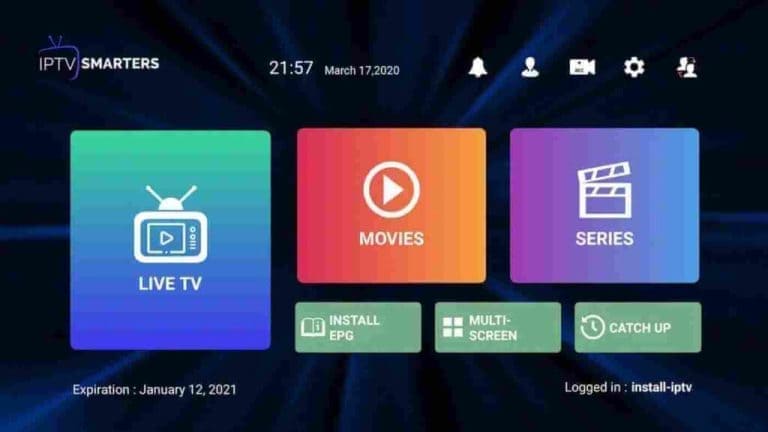
Step 5 It will start downloading channels and on-demand videos for about 10 seconds, then you'll be connected and see this page.
Recommended for Samsung Tizen and LG WebOS Smart TVs
Step 1 Go to the Samsung or LG Smart TV app store and search for the "IBO Player" application. If the app doesn't appear on the main screen, you may need to look in "All Apps" or "Updates". If you still can't find it, please contact us.
Step 2 Launch the "IBO Player" and write down the "Device ID" and "Device Key" displayed on the screen.
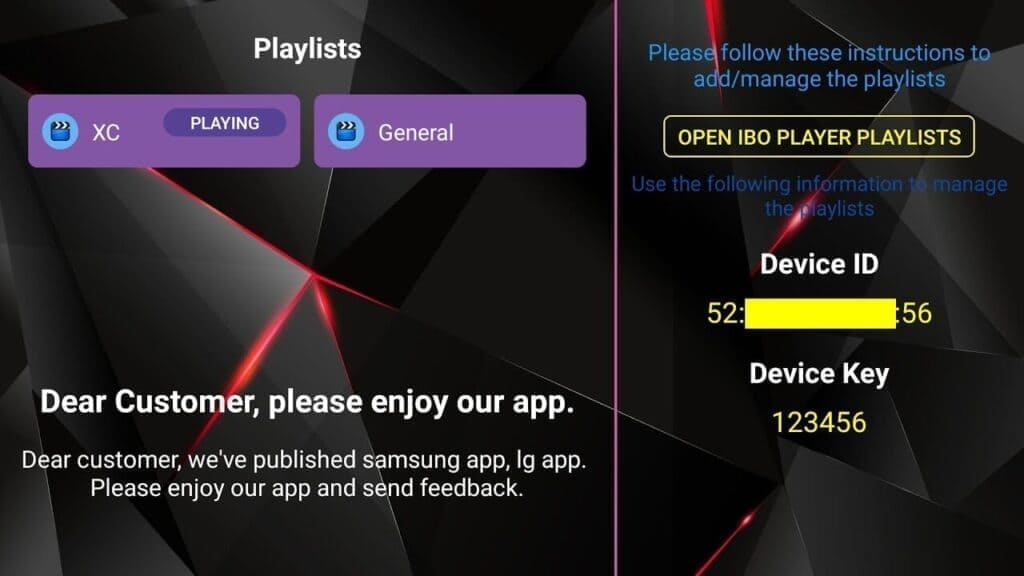
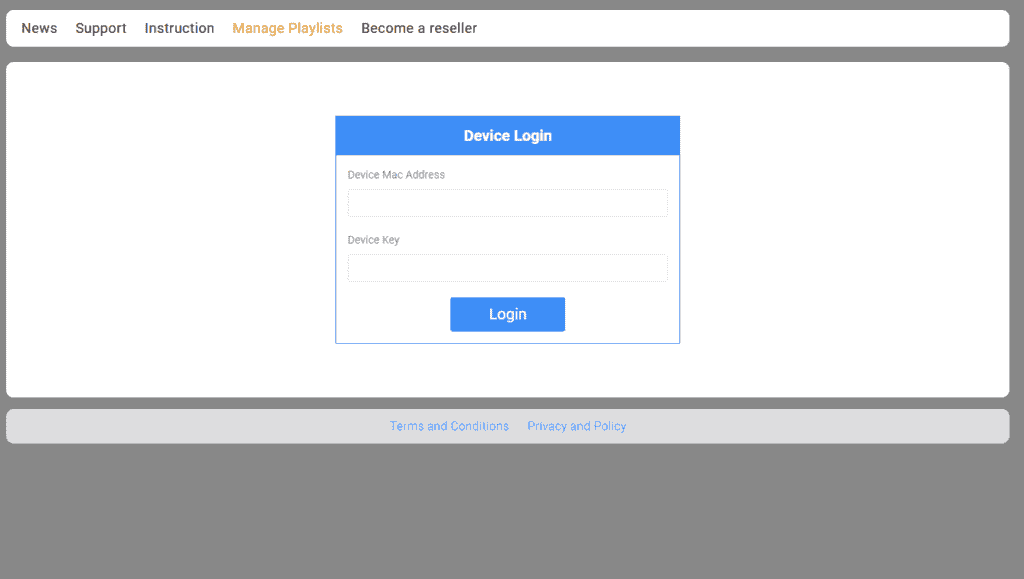
Step 3 Navigate to https://iboiptv.com/device/login and enter the Device ID and Device Key you noted in Step 2, then click Login.
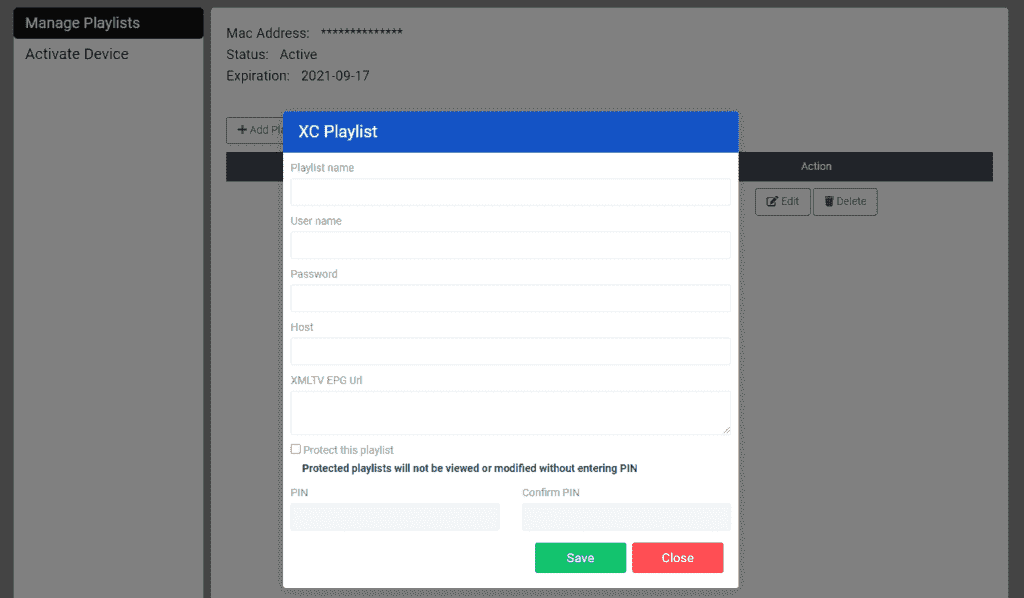
Step 4 Click the (Add XC Playlist) button and fill in your Xtream connection details (check your email for these details).
Enter the username, password and host (Xtream server URL). Click Save.
Step 5 Return to the IBO Player application and choose Refresh to reload the playlists. The playlist name should now appear.
From your Fire TV Stick home screen, hover over the Search option to get started. We'll install IPTV Smarters using the Downloader app.
Step 1 We'll first install the Downloader app. This app will help you download IPTV Smarters on the FireStick (browser downloads aren't allowed).
Step 2 Click on Find > Search on the FireStick home screen.
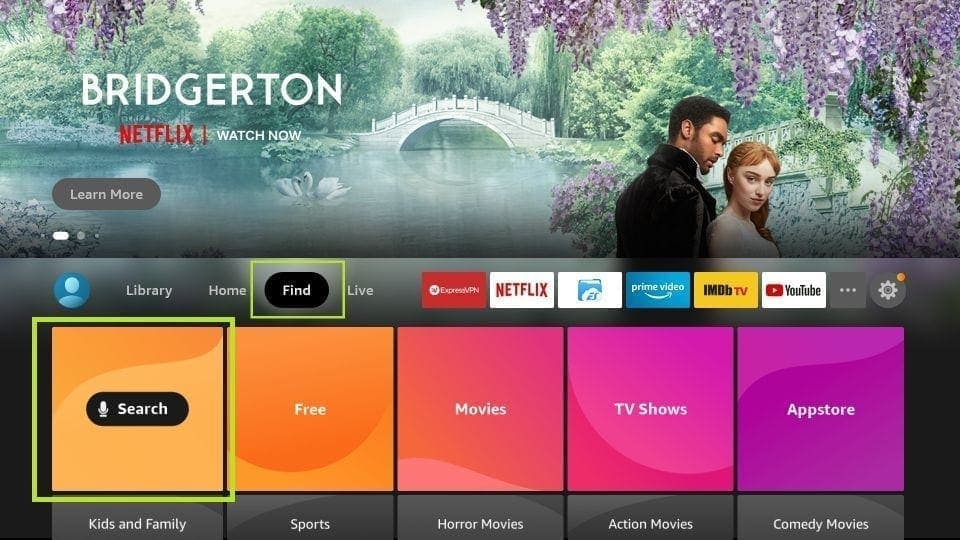
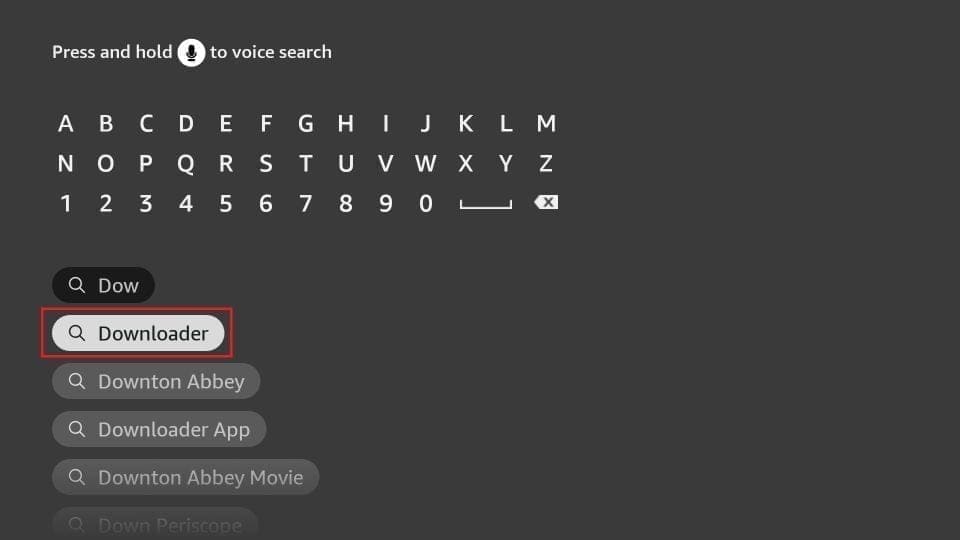
Step 3 Type the name of the app (Downloader). Click the Downloader option when it appears in the search results. Choose the Downloader icon on the next screen and download and install the app.
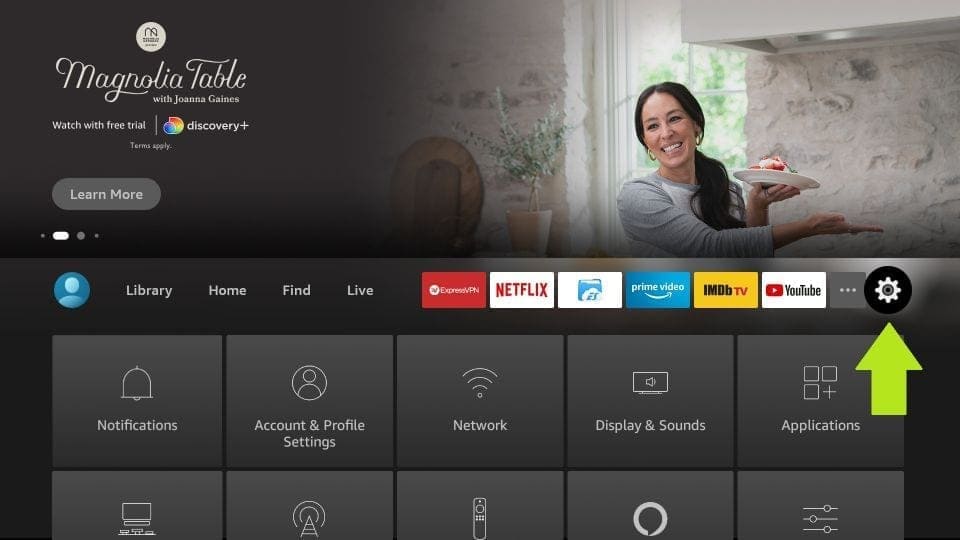
Step 4 Return to the FireStick home screen after installing the Downloader app. In the menu bar, click on Settings.
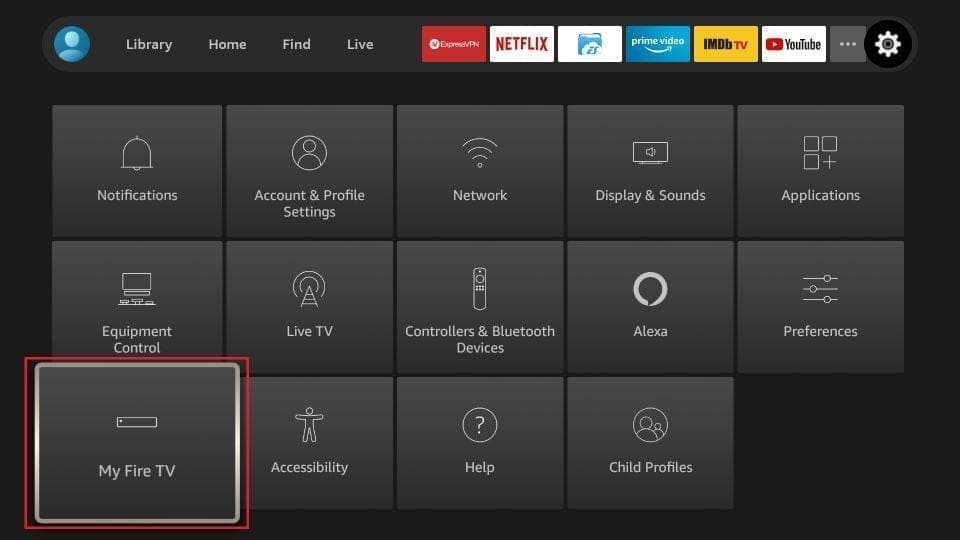
Step 5 In settings, choose the My Fire TV option.
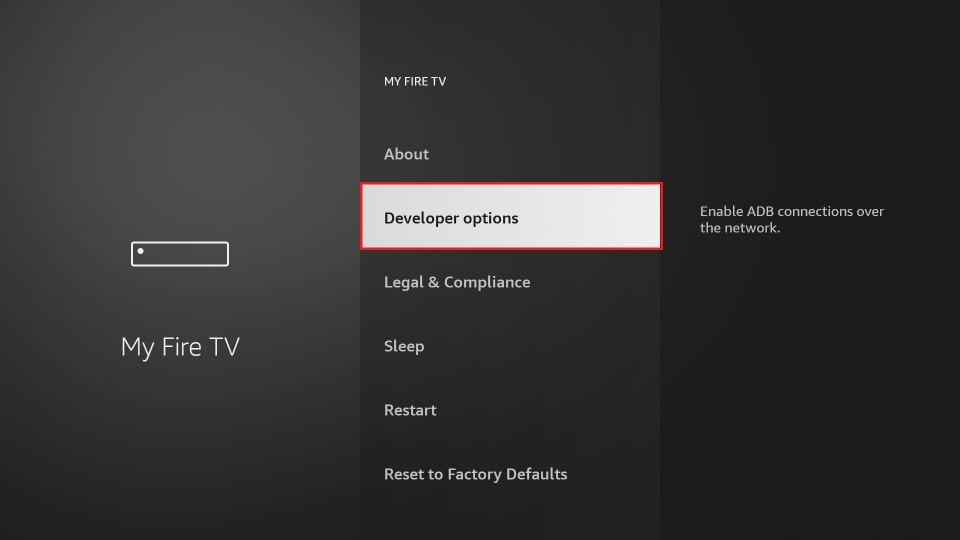
Step 6 When the following set of options appear on the next screen, click on Developer Options.
Step 7 Click on Install from Unknown Apps.
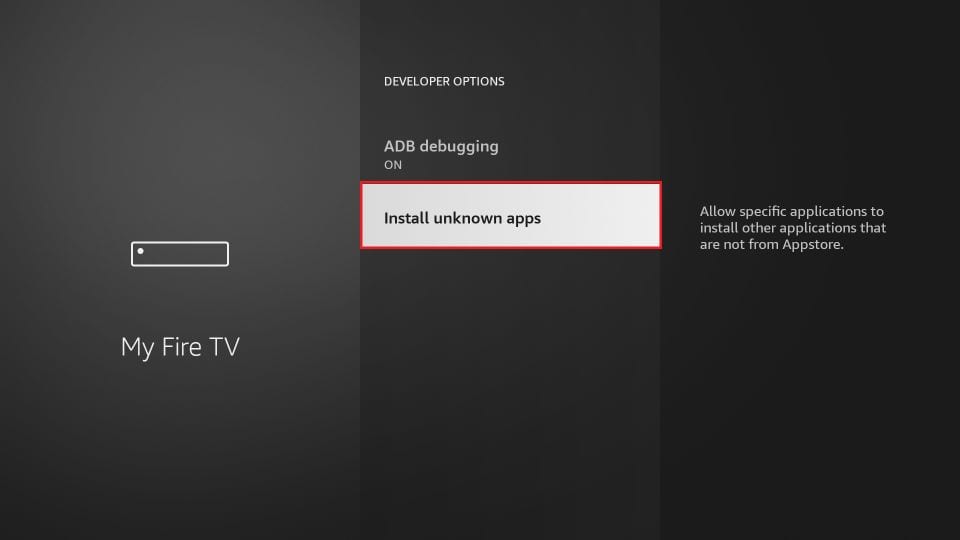
Step 8 Click on Downloader to change the status to ON.
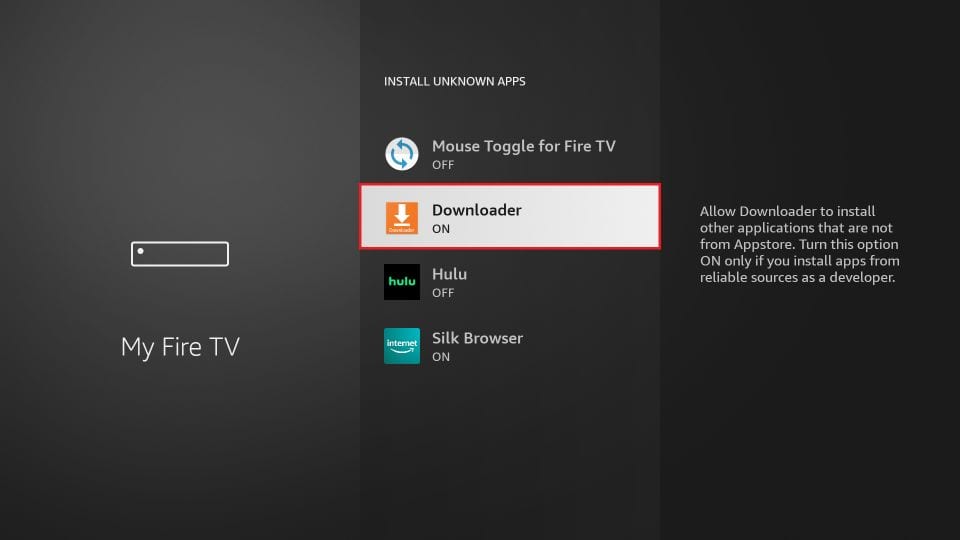
You have now configured FireStick settings to allow IPTV Smarters and other third-party apps to install. Follow the steps below.
Step 9 Open the Downloader app. When you launch this app for the first time, a series of prompts will appear. Skip them until you see the following screen. On this screen, you need to click the URL text box on the right side (make sure the Home option in the left menu is selected) where it says 'http://'.
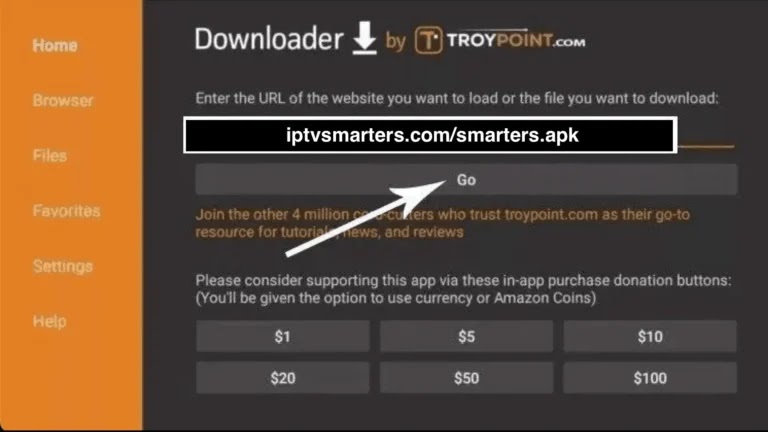
Step 10 Go ahead and enter the following path: https://bit.ly/mainsmart. Click GO.
Step 11 Wait a minute or two for IPTV Smarters to be downloaded to your FireStick device.
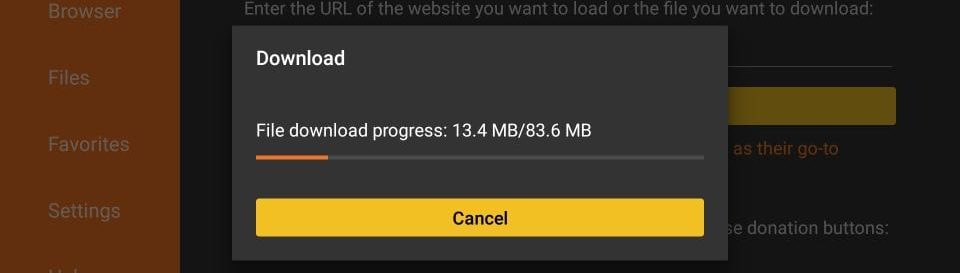
Step 12 Once the download is complete, the Downloader app will run the APK file and installation will begin. Click Install.
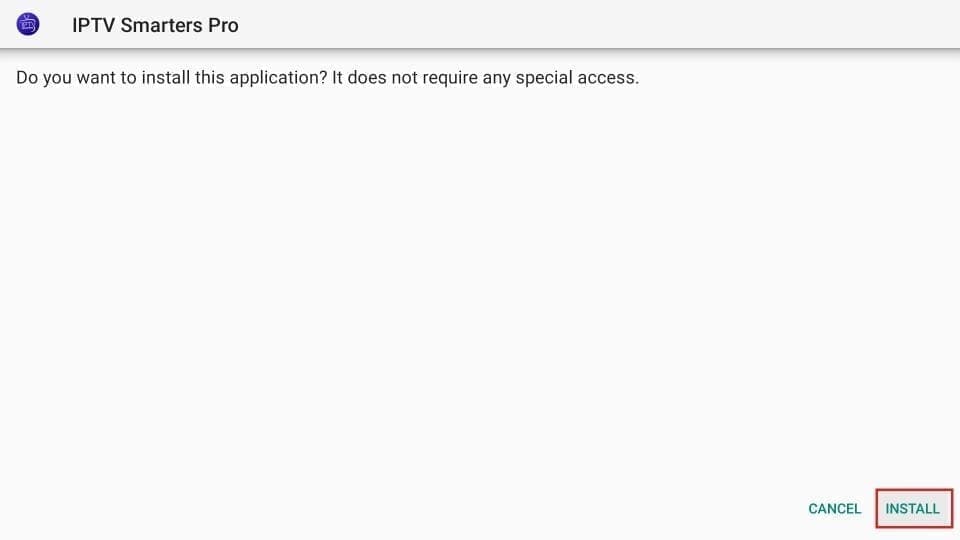
Step 13 Wait for installation to complete.
Step 14 Installation completes with the App Installed notification. You can now click OPEN and start using IPTV Smarters. I recommend choosing DONE so you can first delete the APK file and save storage space on your FireStick.
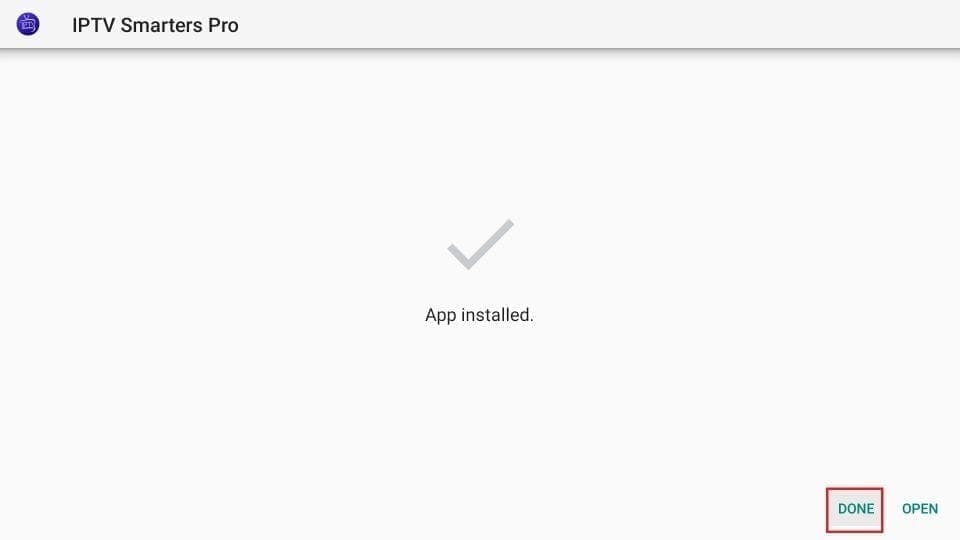
Step 15 If you clicked DONE above, you'll be back on the Downloader interface. Click Delete.
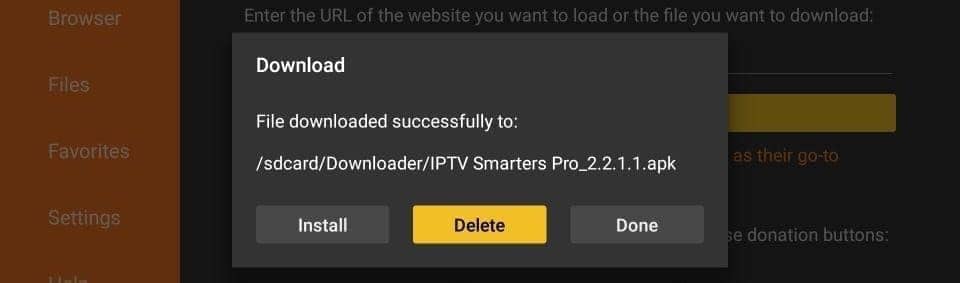
Great! You now have the IPTV Smarters app on your FireStick.
Step 16 Launch IPTV Smarters on FireStick either by going to the "Your Apps & Channels" section, or by pressing and holding the Home button, then selecting Apps on the next screen.
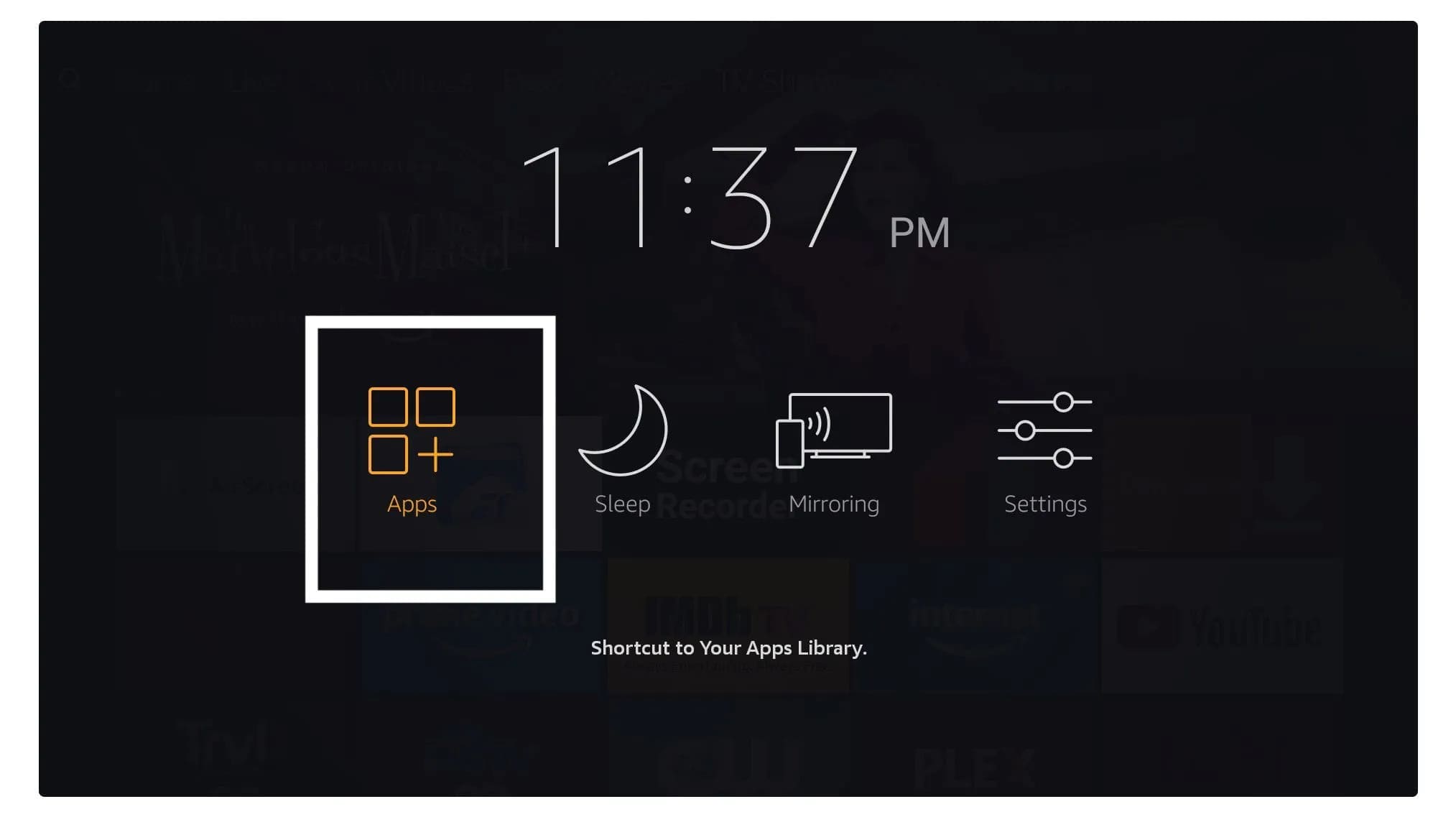
Step 17 Scroll down the screen and you'll see the app appear at the bottom of the screen. Press the select button to launch it.
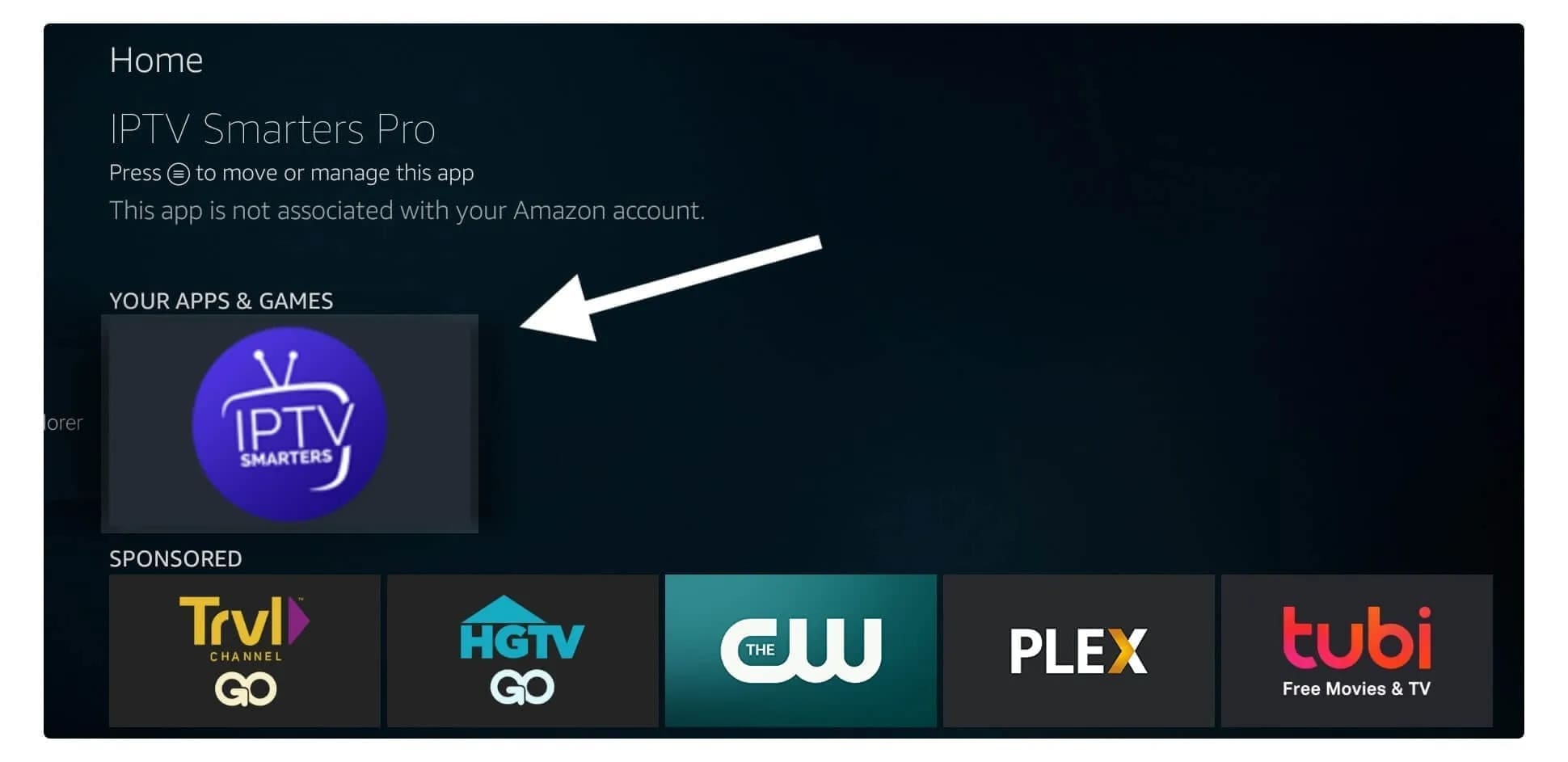
Step 18 When you launch it for the first time, you'll be asked to accept the terms of use. Simply click the "Accept" button.

Step 19 Once done, you'll be asked to Add a User. To do this, simply click the Add User button.

Step 20 On the next screen, you'll see several options to connect to Smarters Pro. You need to choose to login with Xtreme Codes API, which is the fastest method.
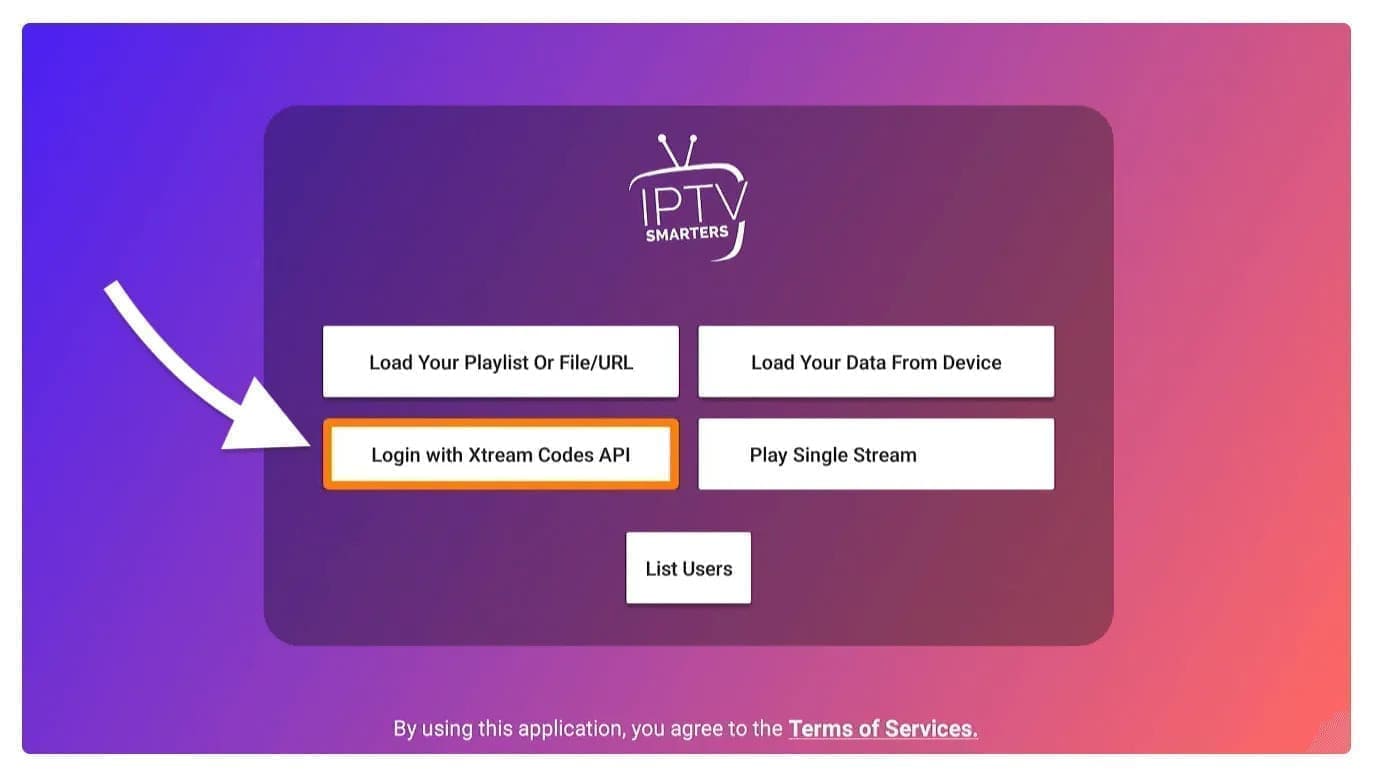
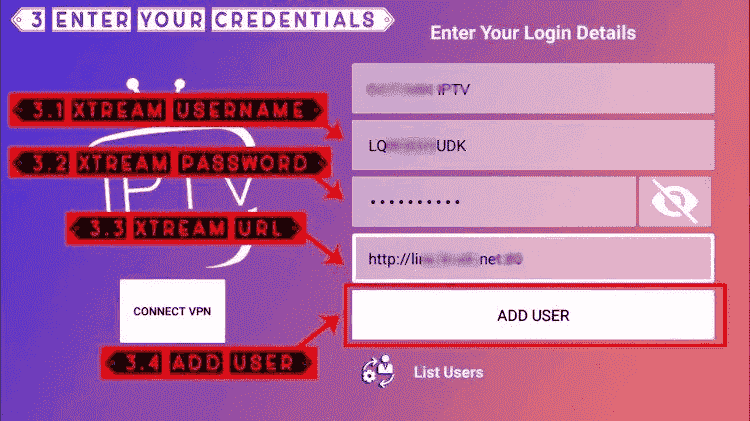
Step 21 After this, you'll notice several fields appear and you need to fill them in as follows:
Step 22 Once you've filled in all the fields, click the "Add User" button and a new profile will be created.
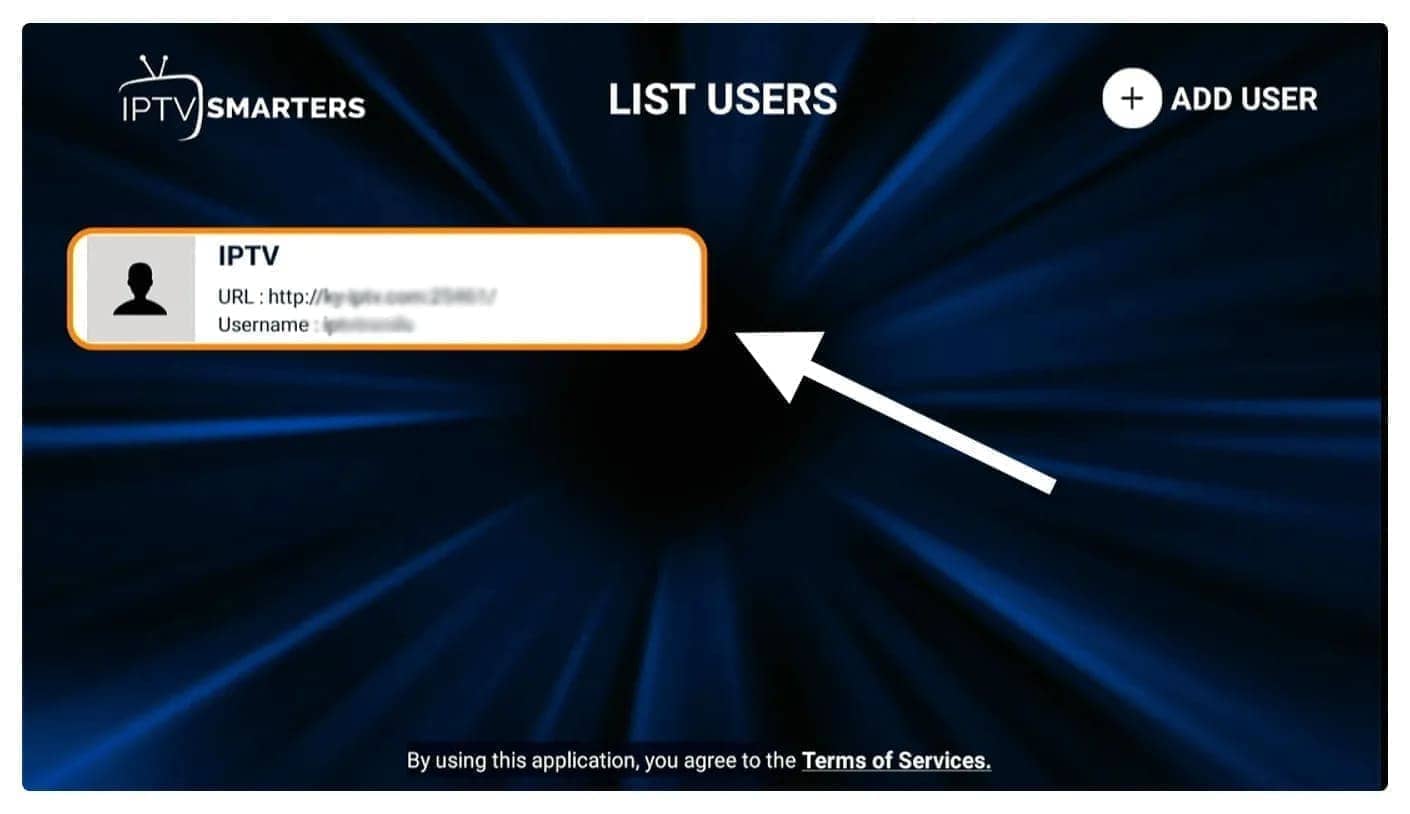
Step 23 After this, you'll notice the user is listed on your screen, so click on the user you created.
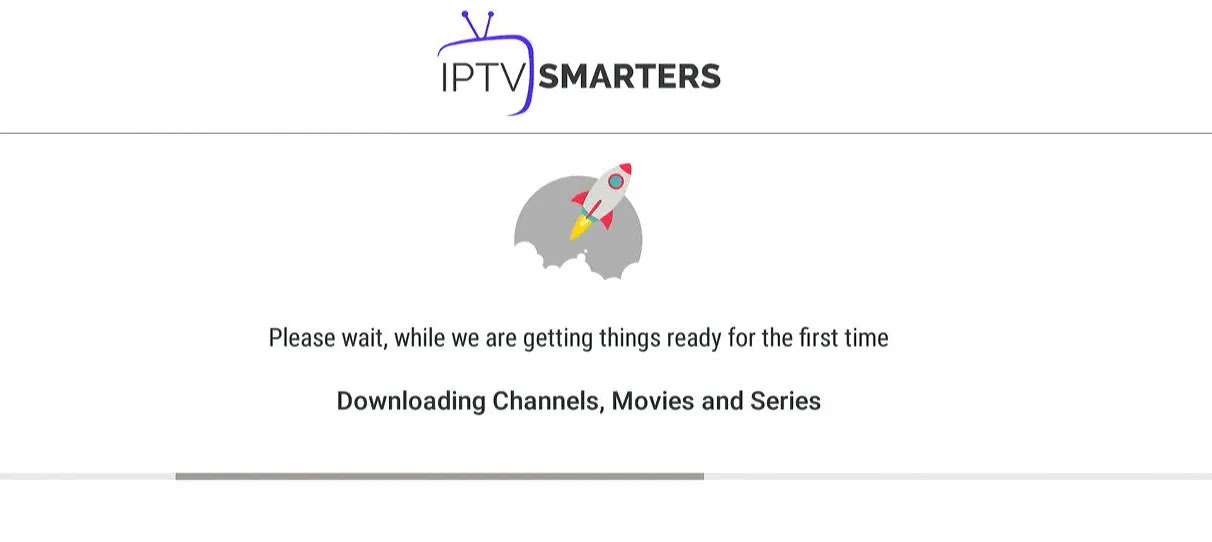
Step 24 On the next screen, it says Downloading Live Channels, Movies and TV Series, so wait a moment until it's complete.
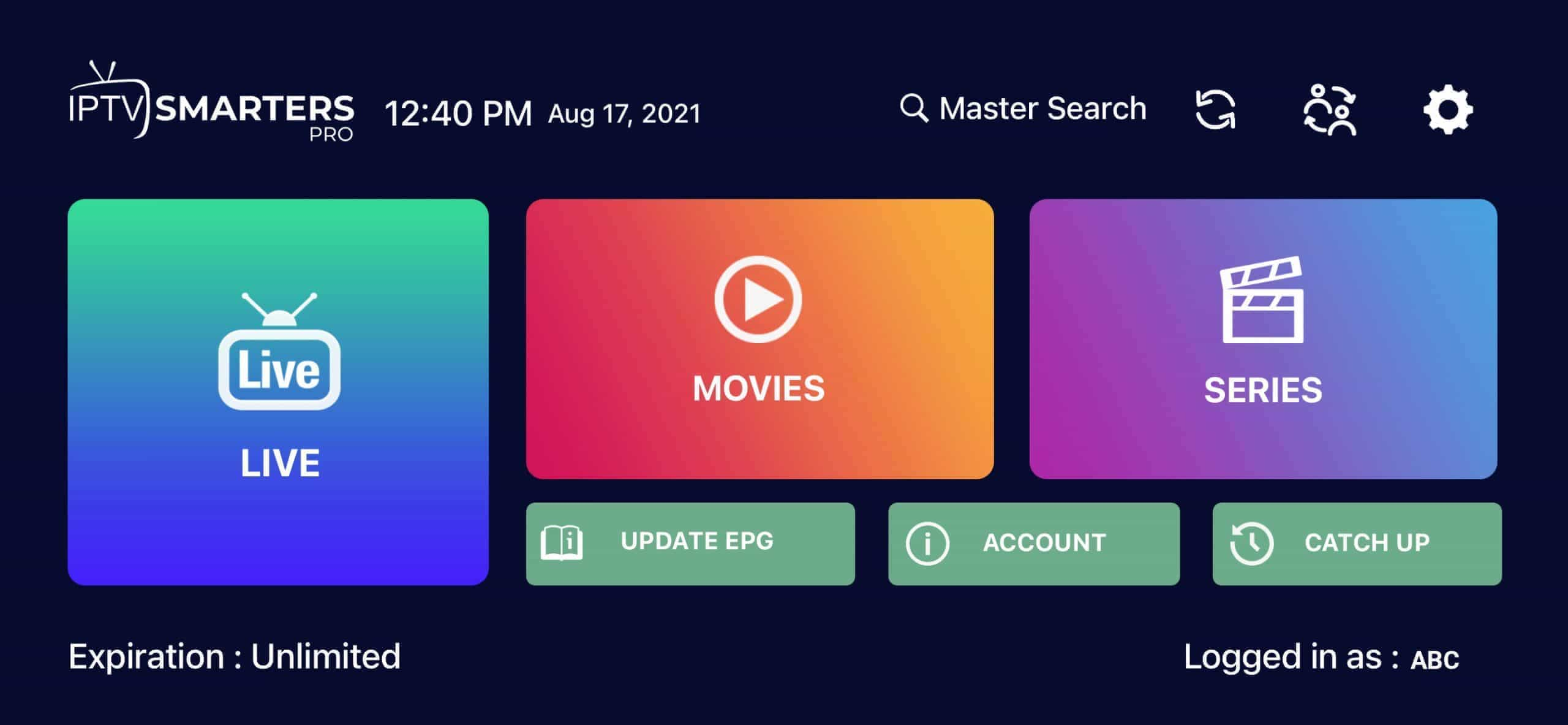
Step 25 Once the download is complete, a simple interface will appear with the options live channels, movies and TV series and others. Now you just need to select one of these options for the available content in that category to appear.
Two recommended apps for iOS devices: Smarters Player Lite and GSE Smart IPTV. Both are free from the App Store.
Best for iPhone, iPad, and Apple TV
Step 1 Start by downloading the Smarters Player Lite app from the Apple Store via this URL: https://apps.apple.com/in/app/smarters-player-lite/id1628995509 or search for it in the App Store. Install the app on your iOS device.
Step 2 Open the app once downloaded and enter the authentication details.
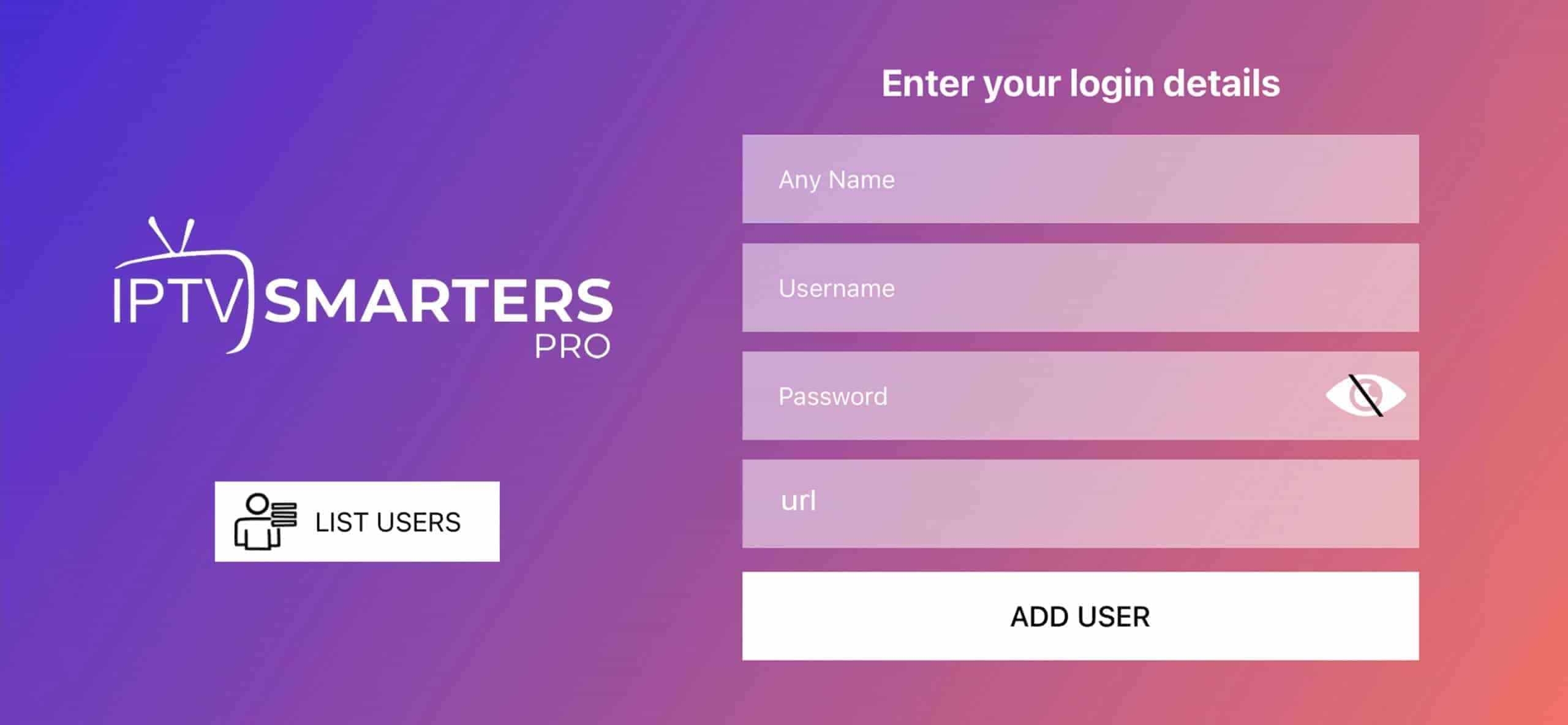
Step 3 Enter the authentication details we provided you after subscribing with us. Now click on "Add User" to move on to the next section.
Step 4 Wait a few seconds.
Step 5 Now click on the "Live TV" icon as shown in the image with a red arrow.
Step 6 Now you need to select the channel group you want to watch and move on to the next section.
Step 7 Now you need to click on the channel name and then double-click on the small screen to make it full screen as the final step.
Step 8 To add the EPG, you don't need to add an EPG URL — just click on "Install EPG".
Available for iPhone, iPad, tvOS and macOS
The GSE Smart IPTV application is available for iPhone, iPad, tvOS and Mac OS X. You can download it from the App Store.
Download for iOS devices: apps.apple.com
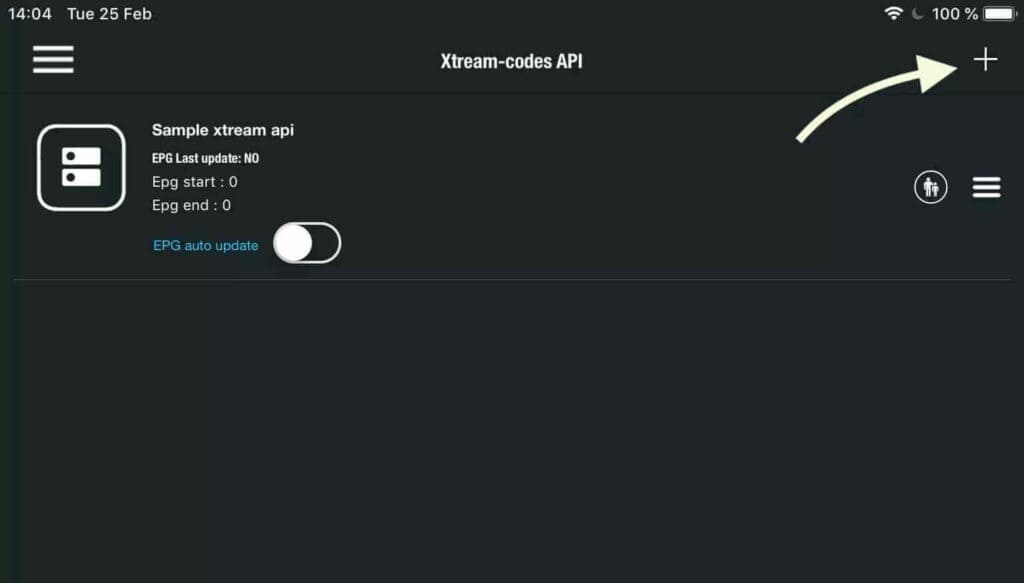
Step 1 Navigate to the XTREAM CODES API option.
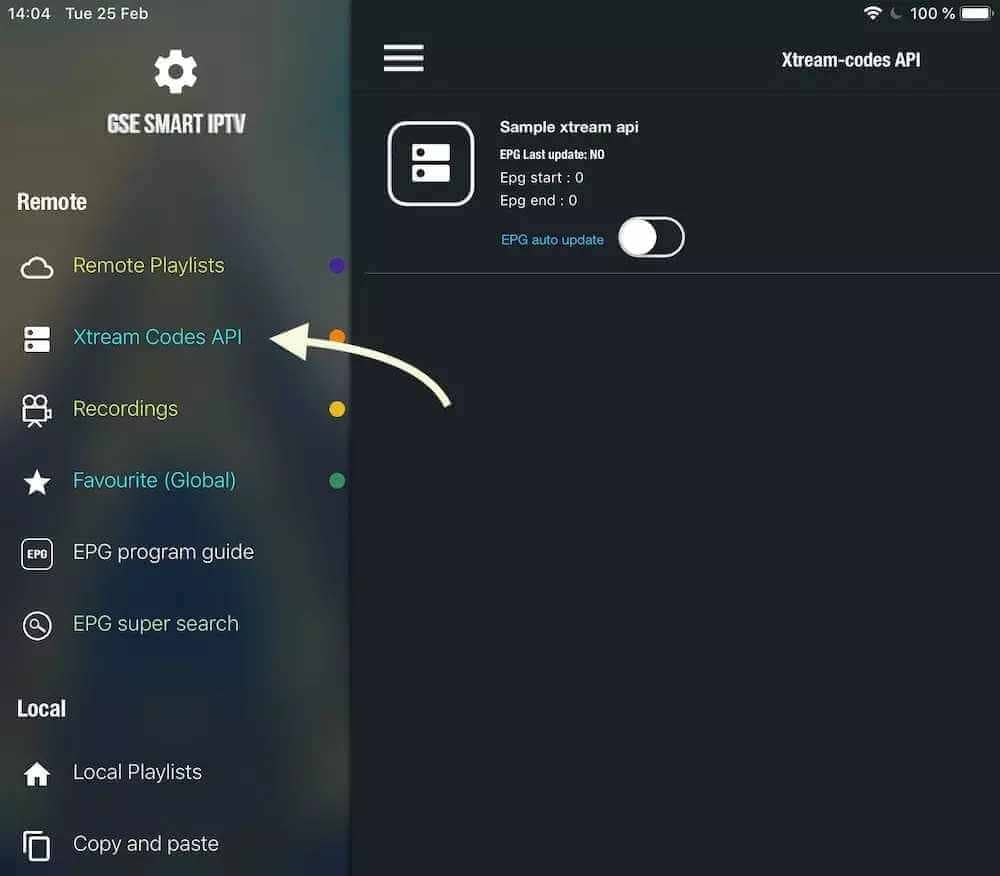
Step 2 Tap the + icon to add a new XTREAM CODES list.
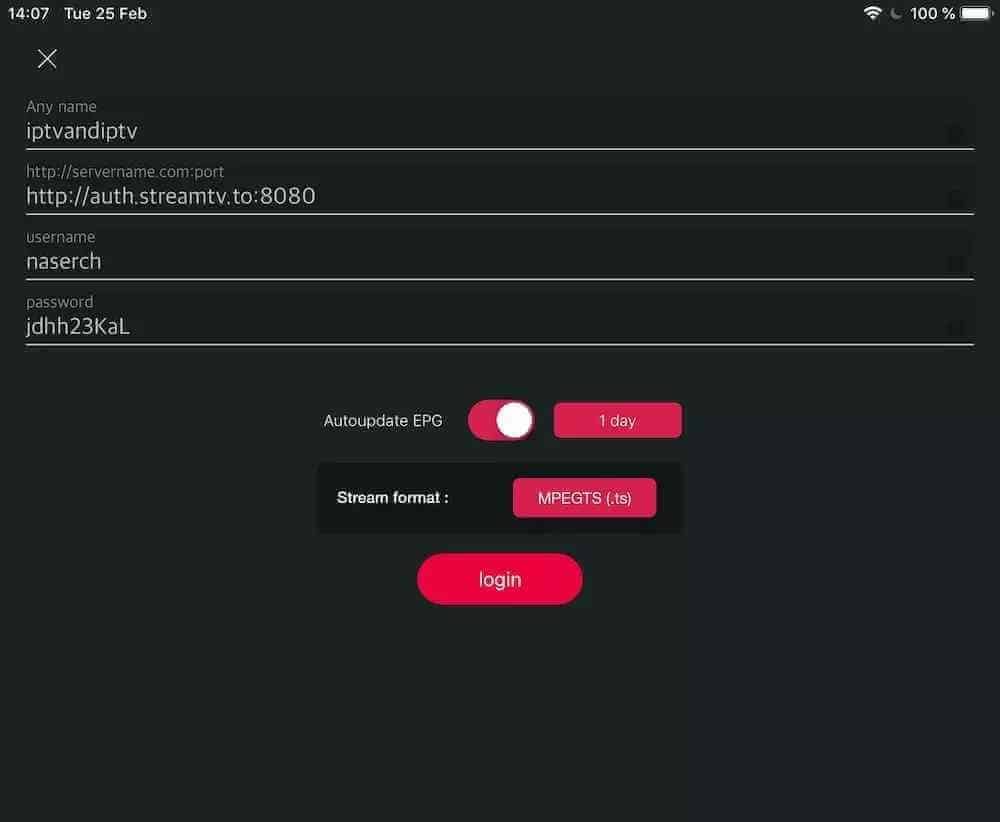
Step 3 Enter the Xtream details. In the first field, choose any name for your list, then enter your username, password and URL we provided. Enable EPG auto-update and click LOGIN.
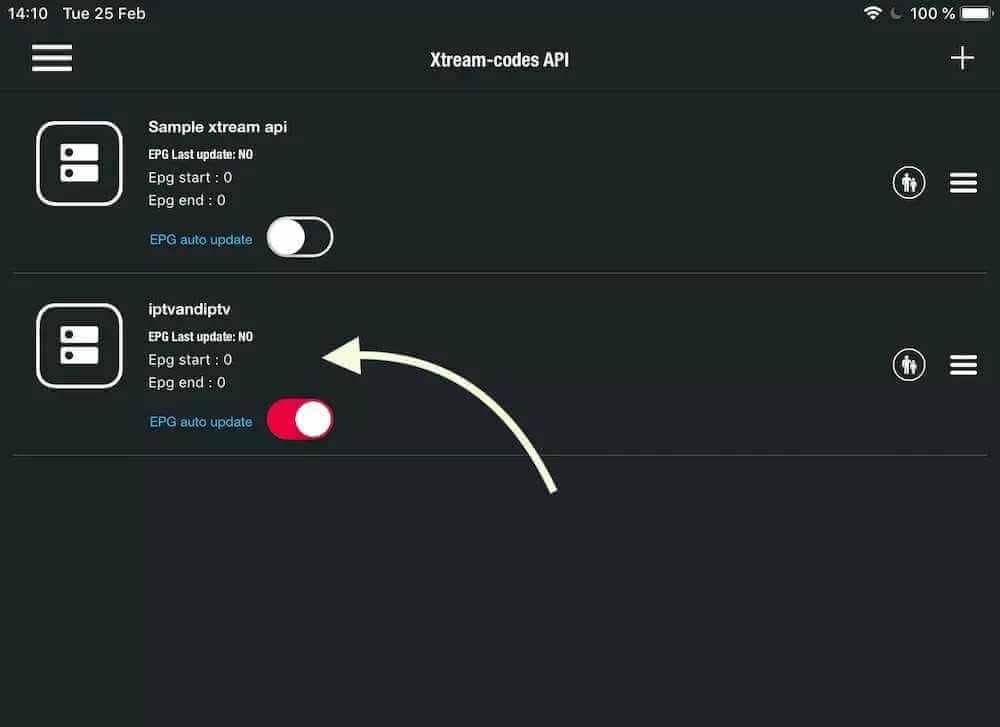
Step 4 Enter the list you created and watch movies and live TV channels.
Our service is compatible with any IPTV application. Here is the recommended app for Android devices.
Works on all Android phones, tablets and TV boxes (Mi Box, Nvidia Shield, Xiaomi)
Step 1 Open the Google Play Store.
Step 2 Search for "IPTV Smarters PRO" or Smarters Player Lite and install it:
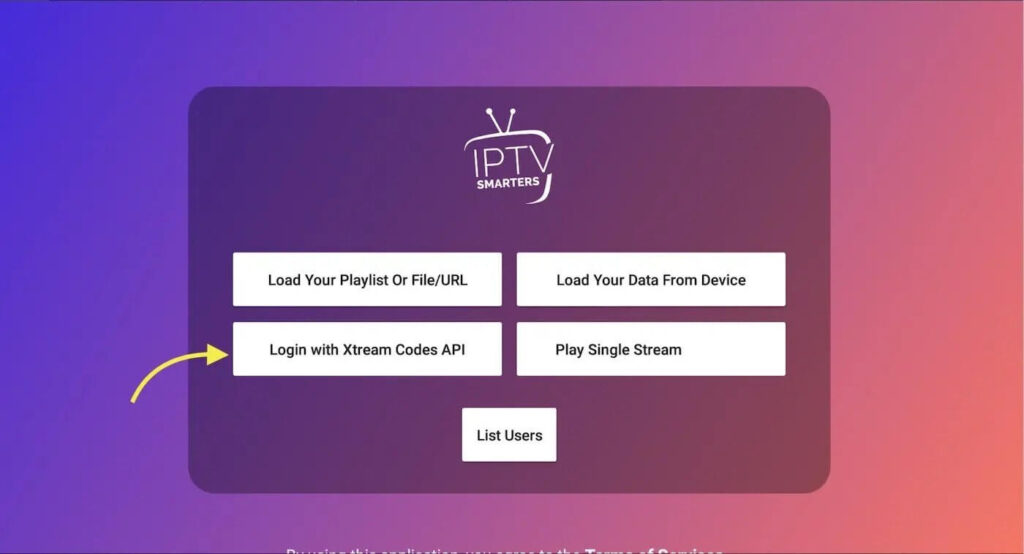
Step 3 Open IPTV Smarters PRO and click on "Login with Xtream Codes API".
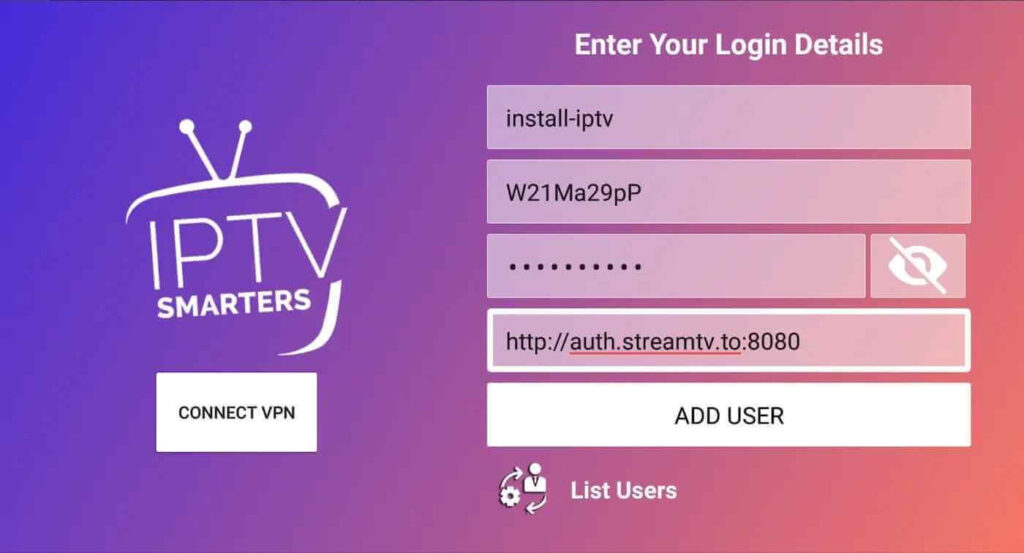
Step 4 Enter the Xtream login details. In the first field, choose any name for your list, then enter your username, password and the URL we provided, and click ADD USER.
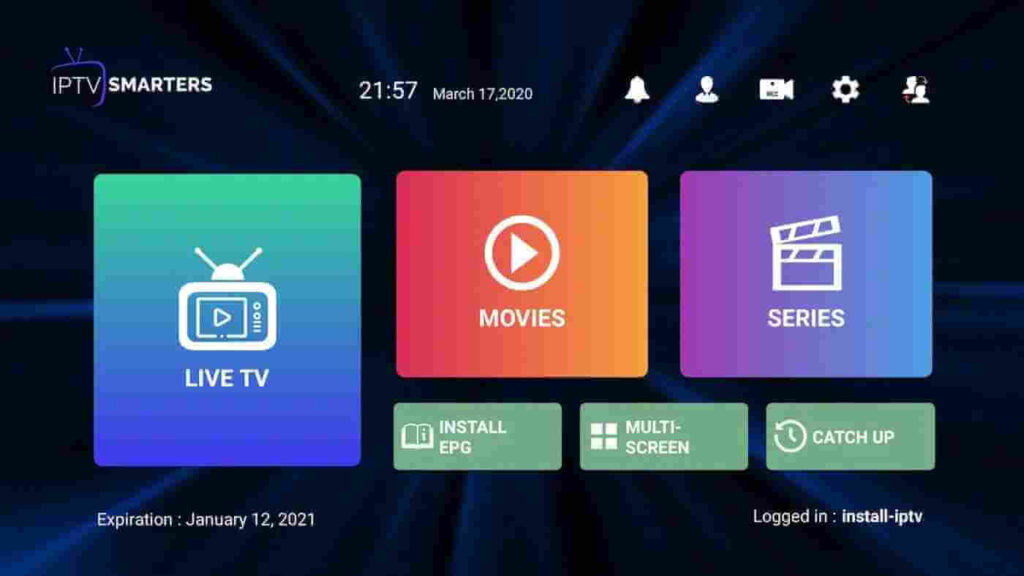
Step 5 It will start downloading channels and on-demand videos for about 10 seconds, then you'll be connected and see this page.
This tutorial will guide you through the simple and effective steps to install your MAG box (250/254/256...).
Step 1 When the box is loading, the main portal screen appears. Then, click on "Settings", and press the "SETUP/SET" button on the remote.
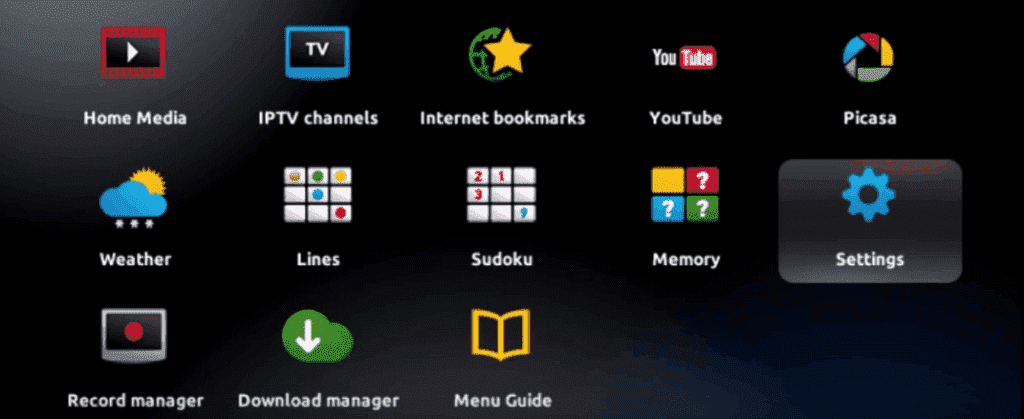
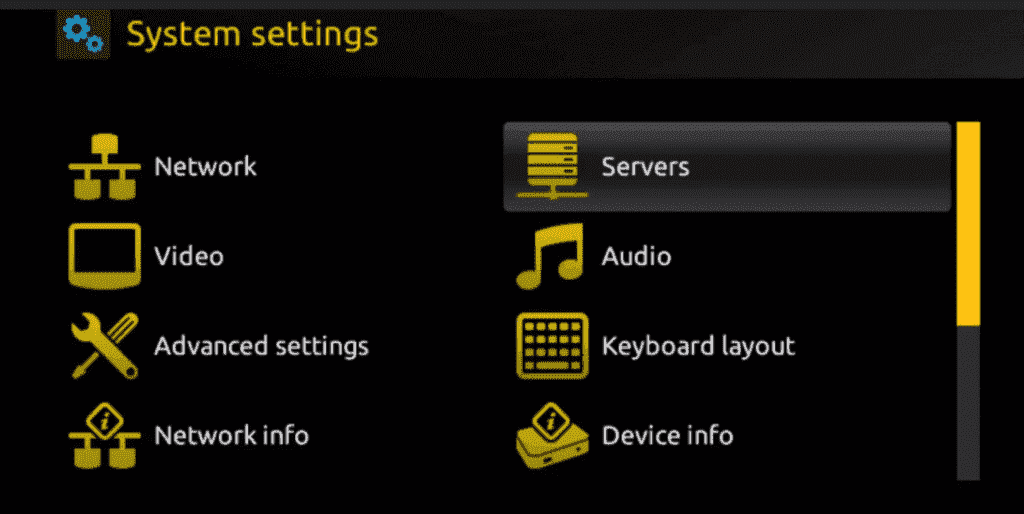
Step 2 Then press "System Settings" and click on "Servers".
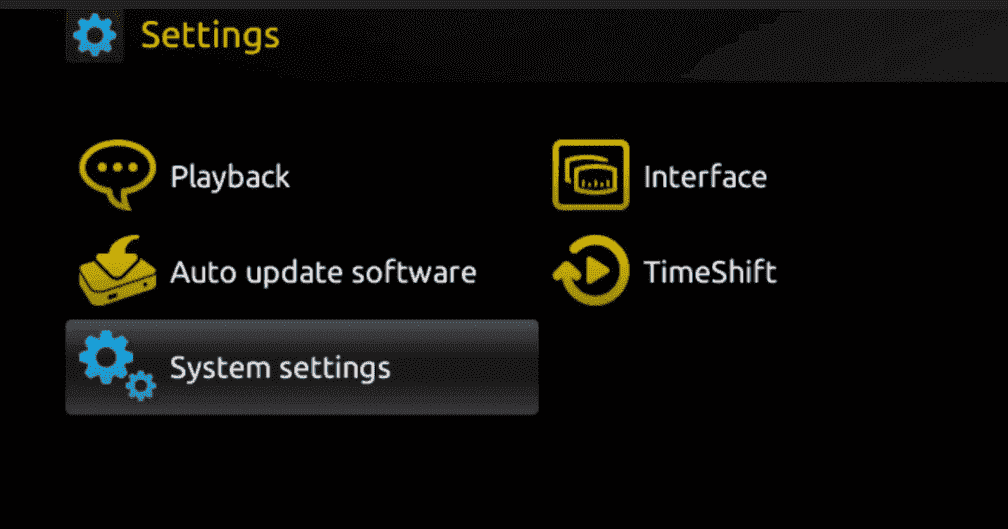
Step 3 Click on "Servers".
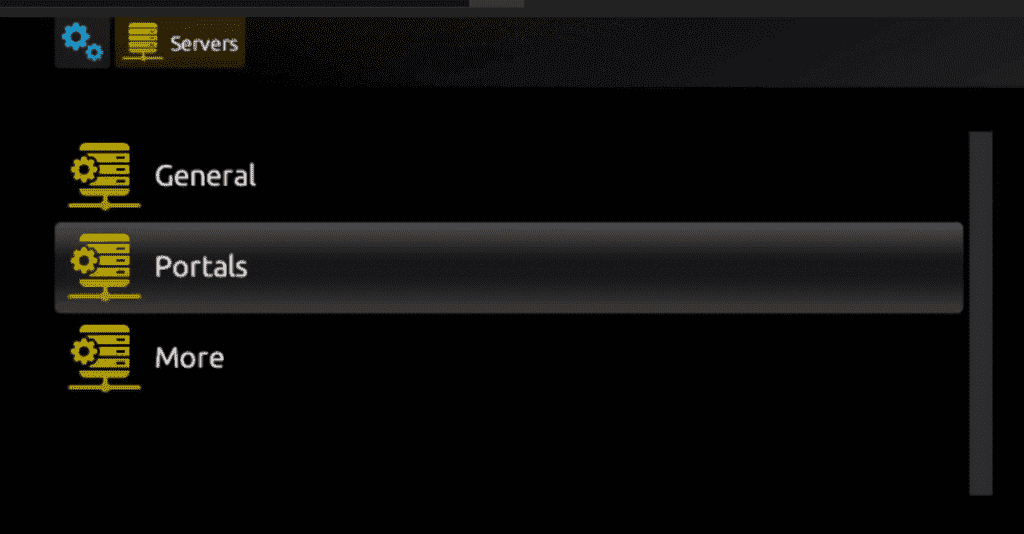
Step 4 Choose and press the "Portals" option.
Step 5 In the "Portal 1 Name" line, enter a portal name and in the "Portal 1 URL" line, enter the portal URL we provided you.
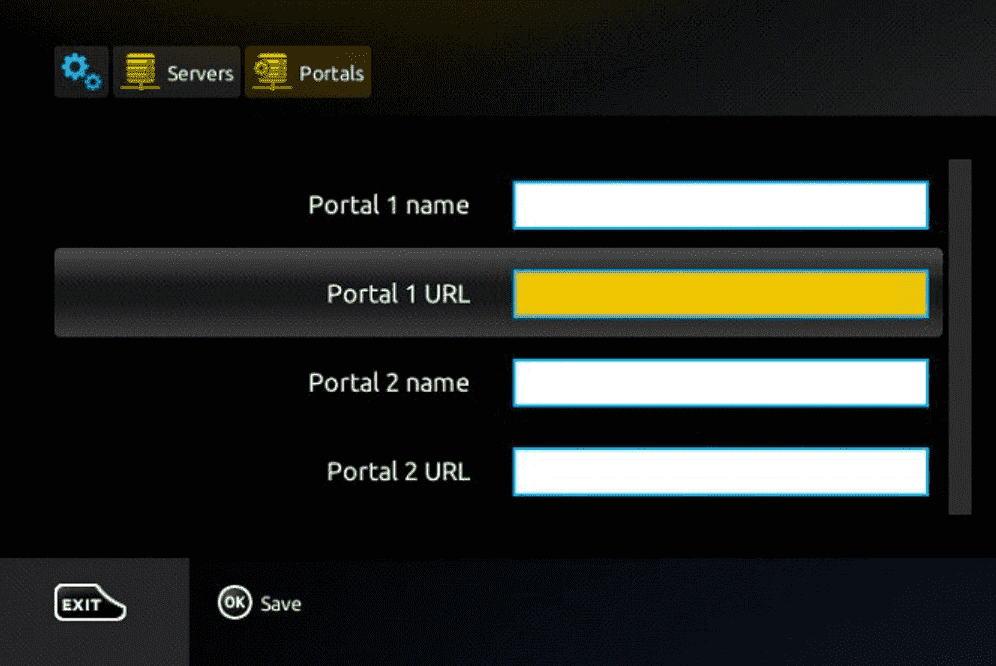
Important: To activate our IPTV subscription on your MAG box, you must send us with your order the MAC address located on the label behind the box. Activation is done entirely remotely. Just after activation, we'll send you a URL link that you must enter on your PORTAL, as shown in the image above.
Step 6 Finally, when you're done, select and click "OK" to save changes.
Step 7 Click "EXIT" on the remote after saving the settings.
Step 8 You need to restart the box. Choose "OK" to apply the changes.
Two recommended applications for Windows: IPTV Smarters Pro and My IPTV Player. Choose the one that fits your needs.
For Windows 10 and Windows 11 desktop computers
Step 1 Go to your search engine and type "IPTV Smarters Pro".
Step 2 Open the website https://www.iptvsmarters.com
Step 3 Select Downloads from the Menu.
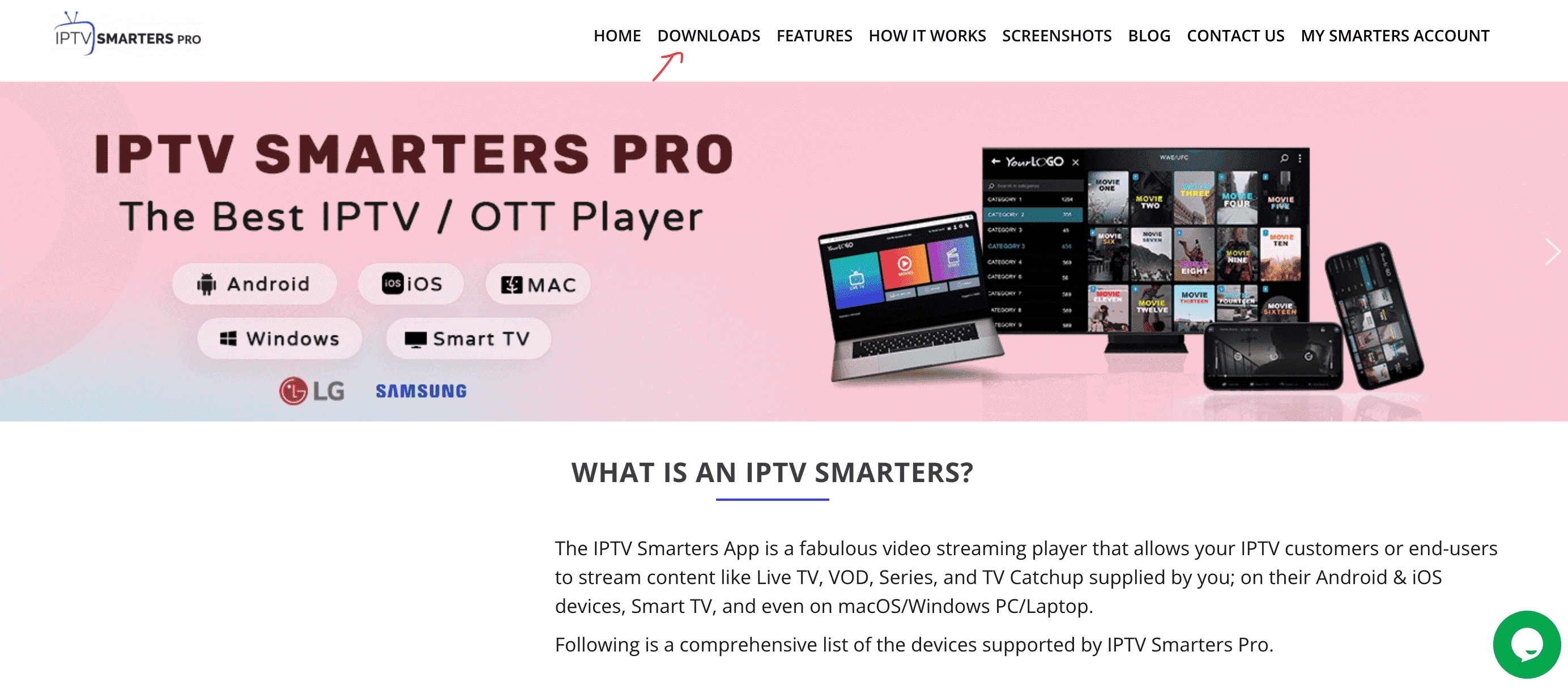
Step 4 Download the latest version of IPTV Smarters Pro.

Step 5 Once the file download is complete, click on the executable file.
Step 6 Windows will ask permission to open this file. Select "Yes".
Step 7 The file will now begin the installation process. This should take one to two minutes.
Step 8 Once installation is complete, launch the IPTV Smarters program. Click Add New User and select Login with Xtream Codes API. Add your connection details (username, password and portal URL) for your IPTV service.
Step 9 You're now ready to start watching content on IPTV Smarters Pro!
For Windows Phone, Windows 10, Windows 11 and Xbox One
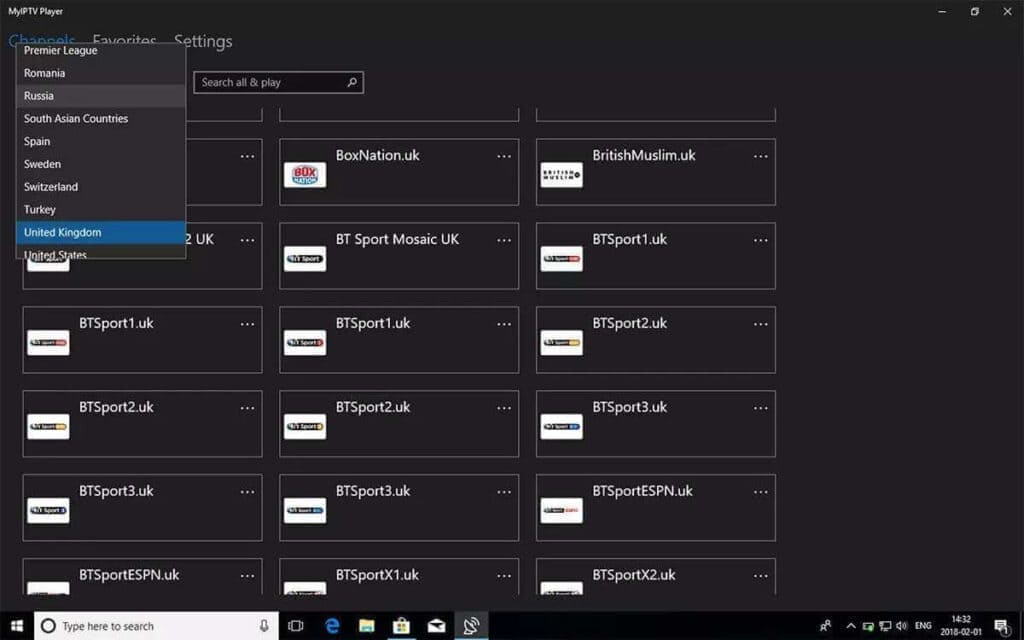
This is an outstanding media player with EPG for playing your IPTV channels on Windows Phone, Windows 10 and Xbox One. You can simply load your M3U playlist from storage or a remote source and you're ready to go.
You can download this app via the link below:
https://www.microsoft.com/
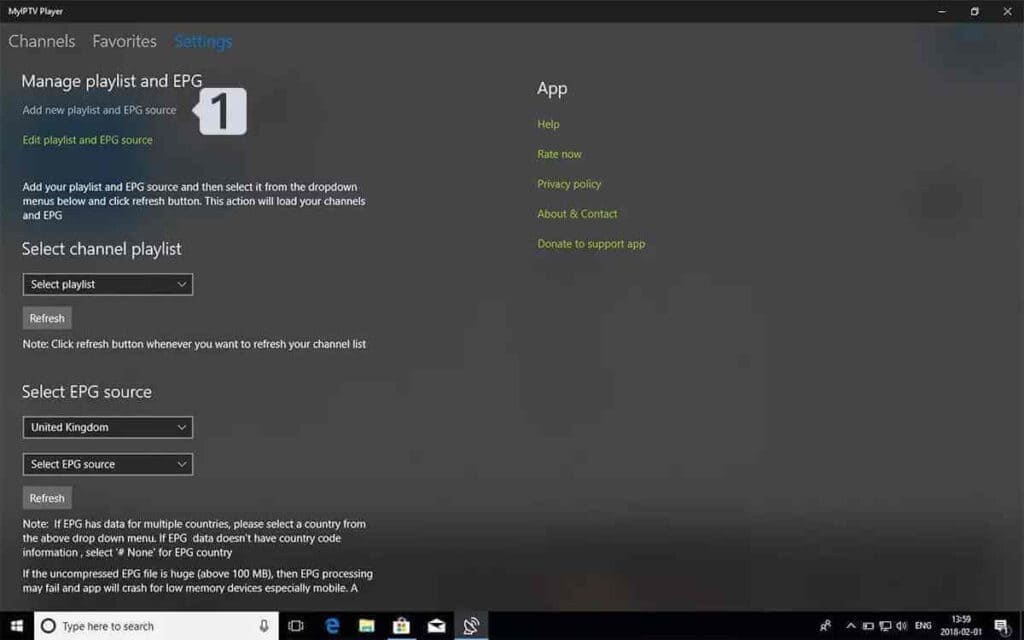
Step 1 Navigate to Settings. Go to the "Settings" tab and open "Add a new playlist and EPG source".
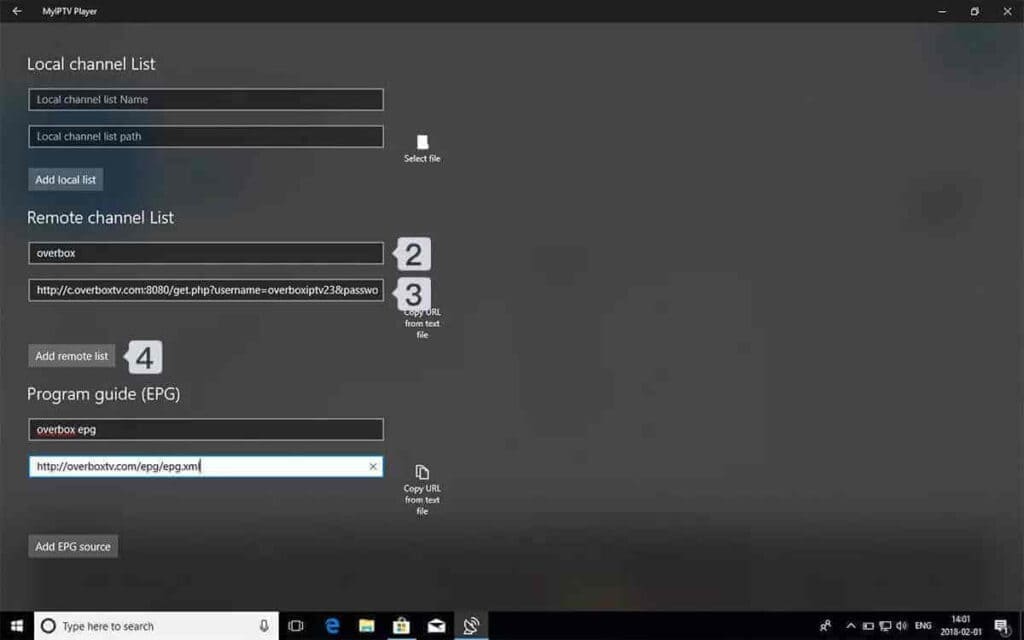
Step 2 Enter the M3u link. Type a name in the "Remote channel list name" field. Enter (paste) the M3u link provided by us in the "Enter remote source URL" field. Press Add remote list.
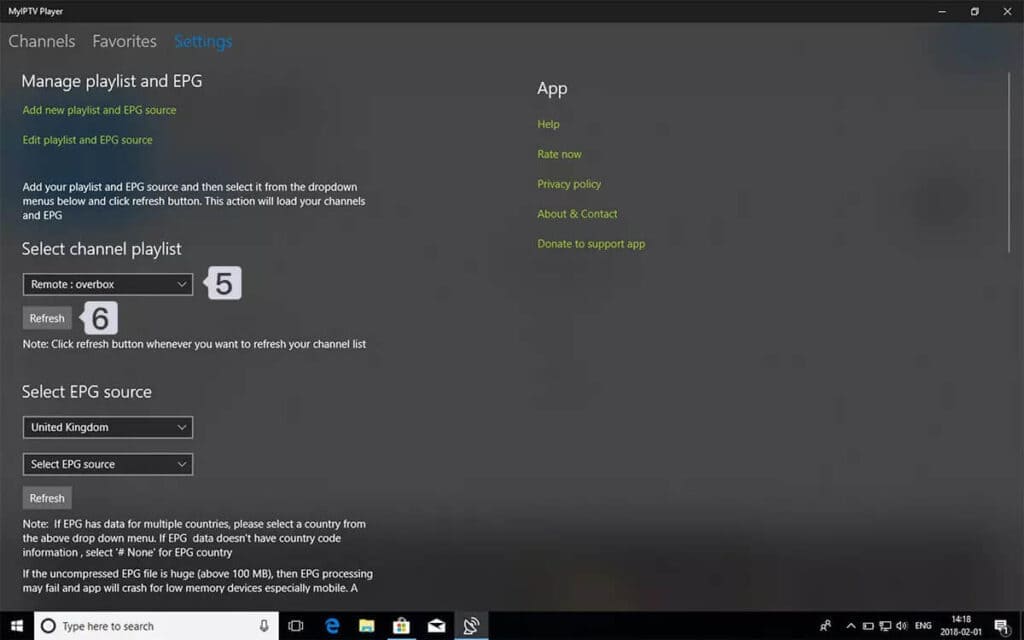
Step 3 Select the list to load. Return to Settings and select the new list from the channel selection list.
Step 4 Watch live TV channels and video on demand. Now return to the Channels tab and select the country whose TV channels you want to watch.
MyTV Online 2 is a pre-installed app for Formuler devices, available on Formuler Z7, Z8, Z10, older models and Z Nano. This Android app works with the Stalker/MAG system and Xtream Codes.
Portal Configuration
NOTE: If you haven't yet connected your device to the Internet, please do so. We always recommend using a LAN cable, which lets you fully enjoy internet speed. Connection speed may be affected if you've connected your device to your internet network via a wireless connection. If your MyTV Online 2 app is not up to date, please update it to avoid programming errors.
Step 1 Select "Add Portal" in the MyTV Online 2 application.
Step 2 Enter an abbreviation/name in the "Portal Nickname" field. We recommend using our name "IPTV South Africa".
Step 3 Then enter the portal URLs we sent you after your purchase or trial request, check the "Login Required" box and enter your username/password combination.
Step 4 To connect to your account, click "CONNECT".
Step 5 Your device should now load the portal and associated channels, VOD and EPG data. This may take a few minutes, please be patient.
Step 6 You have now configured your MyTV Online 2 application.
We hope you enjoy watching!
Installing IPTV on Roku requires enabling developer mode and side-loading the IPTV Smarters app. Follow each part carefully.
Step 1 Power on your Roku box by selecting the HDMI input of your TV.
Step 2 Take your Roku remote and press the following buttons in this order: Home key x3, Up arrow x2, Right arrow x1, Left arrow x1, Right arrow x1, Left arrow x1, Right arrow x1, Left arrow x1.
Step 3 If successful, the Development Options menu will appear on your Roku TV screen.
Step 4 Note the IP address displayed on the screen.
Step 5 Select "Activate and restart installer" (if you've already done this, you can select "Disable").
Step 6 Read the developer tools license agreement and select "I Agree".
Step 7 Use the keyboard that appears to create a password for the web server. You'll need this password later.
Step 8 Select "Set password and restart".
Step 1 On your computer, go to my.roku.com using any browser.
Step 2 Enter your Roku account username and password, then click "Submit".
Step 3 Once logged in, in the "Manage your account" section, select "Add a channel with a code".
Step 4 Type "iptvsmarters" in the text box. Make sure to type the text exactly as shown.
Step 5 Select "Add Channel" to add it to your Roku.
Step 6 Click "OK" when the warning message appears.
Step 7 In the next pop-up, select "Yes, add channel".
Now it's time to download the IPTV Smarters file to your computer.
Step 1 Go to this link on your computer and the download should start automatically: https://www.whmcssmarters.com/clients/dl.php?type=d&id=108
Step 2 Save the IPTV Smarters package in an easily accessible location on your computer (you'll need to access this location shortly). I'll save it to my desktop.
Step 1 On your computer, open any browser. In the address bar, enter the IP address of your Roku that you noted earlier.
Step 2 A login window will appear. For the username, enter "rokudev". For the password, enter the web server password you created earlier. Finally, click "Connect".
Step 3 On the next page, click "Download".
Step 4 Go to the location where you downloaded the IPTV Smarters package (for me, it was on my desktop). Select the downloaded folder and click "Open".
Step 5 Click "Install" once the file is downloaded.
Step 6 If you see this screen, you're done!
Step 7 Return to your Roku device and IPTV Smarters will be available on your TV.
Step 8 Simply log in with your IPTV Smarters details and you're ready to go!
Our English-speaking technical team can install IPTV remotely on any device — including via WhatsApp video call. Average setup time: under 5 minutes. Available 24/7.
Get Free Setup Help on WhatsApp